
Before you start
This lesson follows n8n's docs as they stood on 4 November 2026 and assumes the first workflow lesson is behind you: you can build a workflow, publish it and read an execution. Error workflows react to automatic runs only, so the workflow you cover needs a trigger that fires without you, such as a schedule or a webhook, and it has to be published.
One setting decides how much the handler can report. The docs say execution.id and execution.url exist only when the execution is saved in the database, so keep Save failed production executions on for any workflow you alert on.
Build the handler and attach it
The handler is an ordinary workflow whose first node is the Error Trigger. The message below is a sample for this lesson, built from the field names in the docs' payload. Use it in the Slack or Send Email node that follows the trigger:
Workflow failed: {{ $json.workflow.name }}
Last node: {{ $json.execution.lastNodeExecuted }}
Error: {{ $json.execution.error.message }}
Execution: {{ $json.execution.url }}- Create a new workflow and add the Error Trigger node as its first node.
- Name it, for example
Error Handler, and select Save. The Error Trigger page says a workflow that uses this node does not need to be published. - Add a notification node after the trigger, such as Slack or Send Email, and paste the sample as its message.
- Open the workflow you want to cover. In the workflow menu, select Settings, pick your handler under Error workflow (to notify when this one errors) and select Save.
- Give the covered workflow a failure on demand: a Schedule Trigger followed by a Stop And Error node, published. The last section of this lesson explains that node.
- Open the handler's Executions tab after the schedule fires and read what arrived. Clicking Execute workflow on the covered workflow proves nothing, because the Error Trigger runs only when an automatic execution errors.
What the Error Trigger receives
By default the trigger receives an array that holds an execution object and a workflow object, as the payload below from the error-handling guide shows.
A failure in the main workflow's own trigger node changes the shape. The workflow never executed, so execution carries less and a trigger object carries the details. That object holds an error (a name such as WorkflowActivationError, a message, a cause, a timestamp and the node) and mode set to trigger. A handler that reads execution.error.message needs a second branch for that case.
[
	{
		"execution": {
			"id": "231",
			"url": "https://n8n.example.com/execution/231",
			"retryOf": "34",
			"error": {
				"message": "Example Error Message",
				"stack": "Stacktrace"
			},
			"lastNodeExecuted": "Node With Error",
			"mode": "manual"
		},
		"workflow": {
			"id": "1",
			"name": "Example Workflow"
		}
	}
]| Field | When it is missing | Why |
|---|---|---|
execution.id, execution.url | The error is in the main workflow's trigger node | The workflow never ran, and both need a saved execution |
execution.retryOf | The execution is not a retry | It appears only when the run retries a failed execution |
trigger | The error is not in the trigger node | A trigger failure puts its details here, with mode set to trigger |
Failures inside one run: retries and On Error
An error workflow acts after an execution has already failed. Node settings act earlier. Open a node's Settings tab and you find Retry On Fail and On Error, which the docs describe in a line each.
The line for Retry On Fail says the node reruns until it succeeds. The engine's source draws a tighter line: maxTries defaults to 3 and is clamped between 2 and 5, and waitBetweenTries defaults to 1000 milliseconds and is clamped between 0 and 5000. The editor labels them Max. Tries and Wait Between Tries (ms), per its English strings. A retry fixes a timeout or a rate limit that clears by itself. A wrong API key fails the same way every time.
On Error has three values. Continue has a trap in the source. When the node itself throws, n8n hands the node's input items to the next node, so the rest of the workflow runs on data the failed node never changed. Because the run then ends without a failure, the error workflow stays silent.
| Stop Workflow | Continue | Continue (using error output) Our pick | |
|---|---|---|---|
| Fails the execution, so the error workflow runs | Yes | No | No |
| Runs the nodes after the failed one | No | Yes | Yes |
| Sends failed items out through an extra error output | No | No | Yes |
Our pick: Continue (using error output). Failed items get a branch of their own, so later nodes can alert, log or retry them while the rest of the run finishes.
Sources: n8n Docs: Work with nodes (read November 4, 2026), n8n Docs: Handle errors gracefully (read November 4, 2026), n8n repository: editor strings (read November 4, 2026), n8n repository: execution engine (read November 4, 2026)
Workflow settings that change what a failure leaves behind
Four entries in Workflow settings shape what you can see after a failure. On a self-hosted install they have instance-wide counterparts, such as EXECUTIONS_DATA_SAVE_ON_ERROR and EXECUTIONS_TIMEOUT.
The timeout is the one people forget. The executions variables page lists EXECUTIONS_TIMEOUT with a default of -1, which disables it, so a stuck execution keeps running and no handler hears about it. Turn on Timeout Workflow for workflows that must finish.
| Setting | What the docs say |
|---|---|
| Error workflow | The workflow to trigger if the current workflow fails |
| Save failed production executions | Whether n8n saves failed executions for published workflows |
| Save execution progress | If set to Save, the workflow resumes from where it stopped after an error, and this may increase latency |
| Timeout Workflow | Cancels the execution after a set time, and on n8n Cloud each plan has a maximum |
Fail on purpose with Stop And Error
Some bad runs never throw. An API answers 200 with an empty list, or a field you depend on is missing. Stop And Error turns that case into a failed execution, so the error workflow fires.
It has two operations. Error Message adds one field, the message to throw. Error Object takes a JSON object with the error properties you want to throw. Put the node on the false branch of an If node that checks the thing you need.
Who gets told
On paid plans, runs of a workflow set as an error workflow do not count toward the execution quota, so a chatty handler costs nothing there.
n8n 2.5, released on 20 January 2026, started emailing the workflow owner the first time a workflow fails in production on an instance that has no error workflow. It sends one email per instance, so it is a nudge and not monitoring. To ship events to your own logging stack, log streaming is the built-in route, and it is an Enterprise feature on Cloud and self-hosted.
What n8n's team says about error workflows and retries
On 9 September 2026 the n8n team said on X that error workflow runs are now free on every n8n plan. It is live on Cloud, and self-hosted instances get it from version 2.38.0. The post's reason is that a safety net shouldn't compete with the automations it protects. So point every production workflow at the handler you built here.
Earlier, on 18 June 2026, a reply from the team on X made a point about trying again. Asking for the same thing twice gets you the same answer. Feeding back the exact error is what makes the second attempt targeted.
Retry On Fail sends the same request again, which helps when a service was briefly busy or down. For a step whose output you check, such as an AI node, catch the failure with Continue (using error output) and put the error message into the next attempt.
Error workflow runs are now free on every n8n plan. Your safety net shouldn’t compete with the automations it protects.
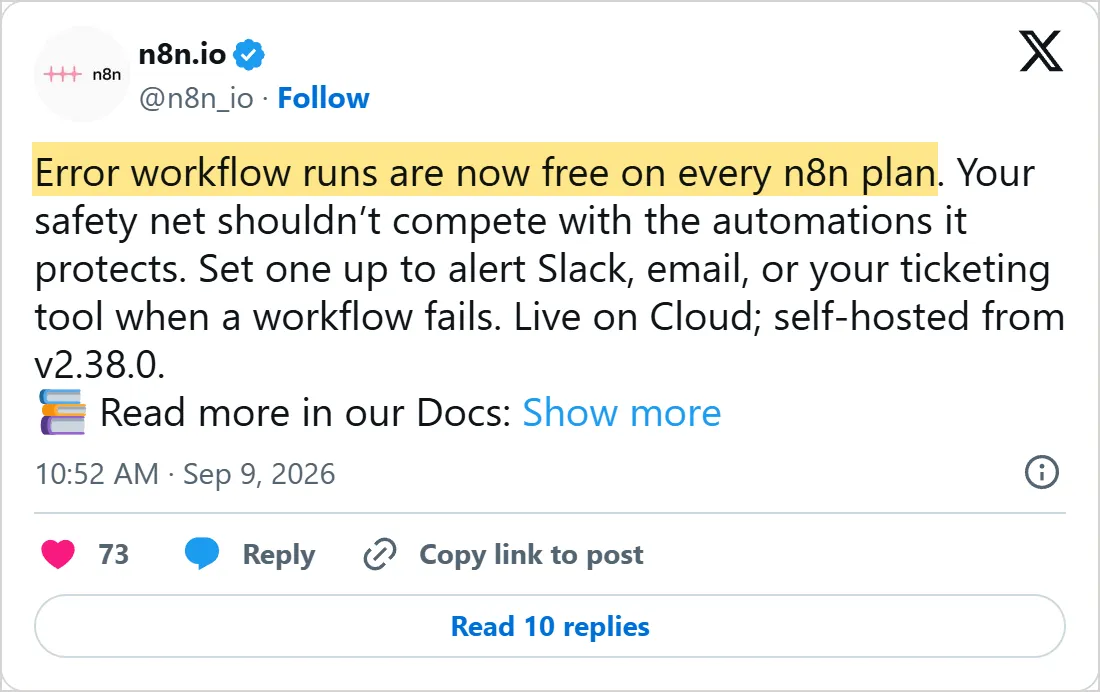
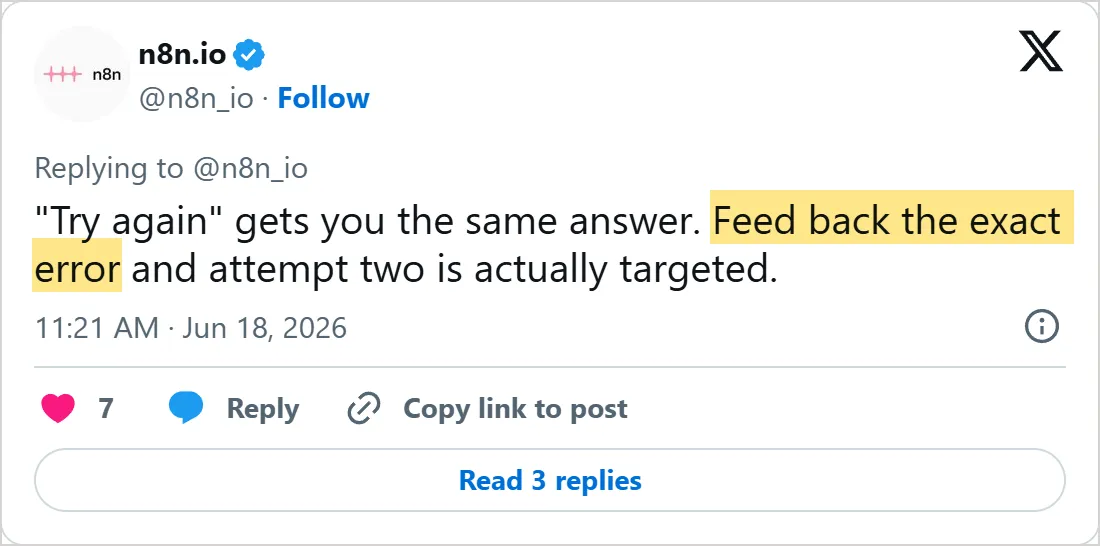

Screenshots of X's own embeds of the posts, taken on 5 November 2026, with the time in UTC. X cuts the first post short with Show more. Select a screenshot to open the post on X.
Common mistakes
- Testing with Execute workflow. The handler ignores manual runs, so publish the covered workflow and let its trigger fire.
- Forgetting the default. A workflow that contains an Error Trigger node uses itself as its error workflow, so review the handler's own Error workflow setting too.
- Assuming
execution.urlis always there. After a trigger failure the payload has noexecution.idorexecution.url, and the details sit intrigger. - Using Continue and never looking. The execution ends green, the handler stays silent and the next node may run on the failed node's input. Prefer Continue (using error output) and handle that branch.
- Retrying everything. A retry helps when the other side was slow or busy. A bad credential or a wrong expression fails on every attempt, three times by default.
- Turning on Always Output Data for an If or Switch node without reading the n8n 3.0 change. In 3.0, now in early access, these nodes add an empty item only when every output is empty. In 2.x each empty output gets one, so a branch can run when it should not.
Try it yourself
- Build the handler from this lesson, attach it to a scheduled workflow that ends in Stop And Error, and read the payload in the handler's execution.
- Set Retry On Fail on an HTTP Request node that calls a URL returning an error, set Max. Tries to 2 and Wait Between Tries (ms) to 2000, then compare the run time with retries off.
- Switch a node to Continue (using error output) and wire its error output to a Slack or Send Email node.
- Open a failed production execution and select Debug in editor. The debug page says n8n copies the data into your workflow and pins it in the first node.
What to learn next
Lesson 2 splits a large workflow into sub-workflows you can build once and call from many places, an alert step among them. If you would rather start from a finished handler, importing an n8n workflow shows how to bring one into your instance, and Mindket's n8n workflows list ready-made ones.
Check yourself
Which node must an error workflow start with?
Show answer
B. Error Trigger The docs say the error workflow must start with the Error Trigger node.
You click Execute workflow on a workflow that fails. What does its error workflow receive?
Show answer
C. Nothing, because the Error Trigger runs only on automatic executions The Error Trigger page says error workflows cannot be tested with manual runs.
A node fails and you want its failed items on their own branch while the run goes on. Which On Error setting fits?
Show answer
A. Continue (using error output) This setting adds an extra error output for failed items and lets the later nodes keep running.
Which failure is Retry On Fail suited to?
Show answer
D. A timeout that clears on its own A retry reruns the same node, so it only helps when the cause goes away between attempts.
Frequently asked questions
Can I test an n8n error workflow with a manual run?
No. To see the handler fire on demand, put a Stop And Error node in the covered workflow, publish it, and let a Schedule Trigger set to every minute start it once. Unpublish it afterwards.
Does one error workflow cover several workflows?
Yes, and the payload says which workflow failed. It carries workflow.id and workflow.name, so one message template serves them all. Select the same handler in each workflow's settings.
Do I have to publish the error workflow?
No. The handler can stay unpublished, as the Error Trigger page notes. The workflow it covers does need publishing, since only automatic runs reach the handler.
Do error workflow runs count toward my execution quota?
No. The quota tallies only production executions on paid plans, and the docs put error workflow runs outside that tally.
What is the difference between Retry On Fail and an error workflow?
A retry stays inside one execution and repeats a single node. An error workflow is a separate run that starts after the whole execution has failed. Retries suit failures that clear by themselves, and the handler suits the ones that need a person.
Can I get a failed execution's data back into the editor?
Yes. Open the failed run in the Executions tab and choose Debug in editor, which loads its data into your workflow. The docs list this for Cloud on all plans and for self-hosted registered Community, Business and Enterprise.
Sources
- n8n Docs: Handle errors gracefully https://docs.n8n.io/build/flow-logic/handle-errors-gracefully
- n8n Docs: Error Trigger node https://docs.n8n.io/integrations/builtin/core-nodes/n8n-nodes-base.errortrigger
- n8n Docs: Stop And Error node https://docs.n8n.io/integrations/builtin/core-nodes/n8n-nodes-base.stopanderror
- n8n Docs: Work with nodes https://docs.n8n.io/build/understand-workflows/workflow-components/work-with-nodes
- n8n Docs: Configure workflow settings https://docs.n8n.io/build/manage-workflows/configure-workflow-settings
- n8n Docs: Understand executions https://docs.n8n.io/build/understand-workflows/understand-executions
- n8n Docs: Debug executions https://docs.n8n.io/build/understand-workflows/understand-executions/debug-executions
- n8n Docs: Stream logs to external systems https://docs.n8n.io/administer/observe-and-log/stream-logs-to-external-systems
- n8n Docs: Executions environment variables https://docs.n8n.io/deploy/host-n8n/configure-n8n/basic-configuration/use-environment-variables/executions
- n8n Docs: v3.0 breaking changes https://docs.n8n.io/changelog/v30-breaking-changes
- n8n Docs: Release notes https://docs.n8n.io/changelog/release-notes
- n8n repository: execution engine (workflow-execute.ts) https://github.com/n8n-io/n8n/blob/master/packages/core/src/execution-engine/workflow-execute.ts
- n8n repository: editor strings (en.json) https://github.com/n8n-io/n8n/blob/master/packages/frontend/@n8n/i18n/src/locales/en.json
- n8n.io on X: error workflow runs are now free on every n8n plan, 9 September 2026 https://x.com/n8n_io/status/2097639369079181575
- n8n.io on X: feed back the exact error, 18 June 2026 https://x.com/n8n_io/status/2067568466161221784
- n8n on YouTube: n8n Advanced Course (5/8) - Error workflows https://www.youtube.com/watch?v=77Ewdaby47M