
Before you start: which tool, and what happened to Sora
An AI video generator turns a written description, a photo or a short clip into a few seconds of moving picture, usually with sound. You describe one shot, wait a few minutes and download the result. Anything longer is built clip by clip.
Two Google tools cover most beginners. The Gemini app now makes videos with Gemini Omni, which replaces the older Veo model there. Google Flow is a separate filmmaking tool where you pick the model for each clip, Veo or Gemini Omni Flash, and build scenes from several clips.
Both need a Google AI plan or a qualifying Google Workspace license. You must be 18 or over and signed in. Flow is offered only in some countries. It works best on a desktop computer in a Chromium browser such as Chrome or Edge.
What about Sora? The Sora account said goodbye on X on March 24, 2026. OpenAI closed the Sora website and app on April 26, 2026, and the Sora API on September 24. Its help page points former users to sora.chatgpt.com/sunset to export their videos before the data is deleted. Any Sora credits they bought can still be spent in Codex, OpenAI's coding tool. ChatGPT still makes and edits pictures, but its capabilities page lists no video maker.
Veo 3 adds sound
Google's preview of Veo 3 makes video with audio.
Source: Google AI Studio changelog (read November 5, 2026)
Veo 3.1
Clips can be extended, built from up to three reference images or framed by a first and last picture.
Source: Google AI Studio changelog (read November 5, 2026)
Sora app closes
OpenAI shuts the Sora website and app.
Source: OpenAI Help Center (read November 5, 2026)
Gemini Omni Flash preview
Google releases a fast multimodal model for video generation.
Source: Google AI Studio changelog (read November 5, 2026)
Gemini Omni Flash 1.1
The general release adds extending a clip at its end and a video that moves between two pictures.
Source: Google AI Studio changelog (read November 5, 2026)
Sora API closes
Developers can no longer make Sora videos either.
Source: OpenAI Help Center (read November 5, 2026)
| Where | Model | Clip length | Starts from |
|---|---|---|---|
| Gemini app | Gemini Omni 1.1 Flash | 10 seconds | Text, 1 video and up to 5 photos |
| Flow | Veo 3.1 Lite | 4, 6 or 8 seconds | Text, start and end frames, ingredients. Extends 8 second clips |
| Flow | Veo 3.1 Fast | 4, 6 or 8 seconds | Text, frames, ingredients |
| Flow | Veo 3.1 Quality | 4, 6 or 8 seconds | Text and frames, no ingredients |
| Flow | Gemini Omni Flash 1.1 | 4, 6, 8 or 10 seconds | Text, frames, ingredients and edits to a video you upload |
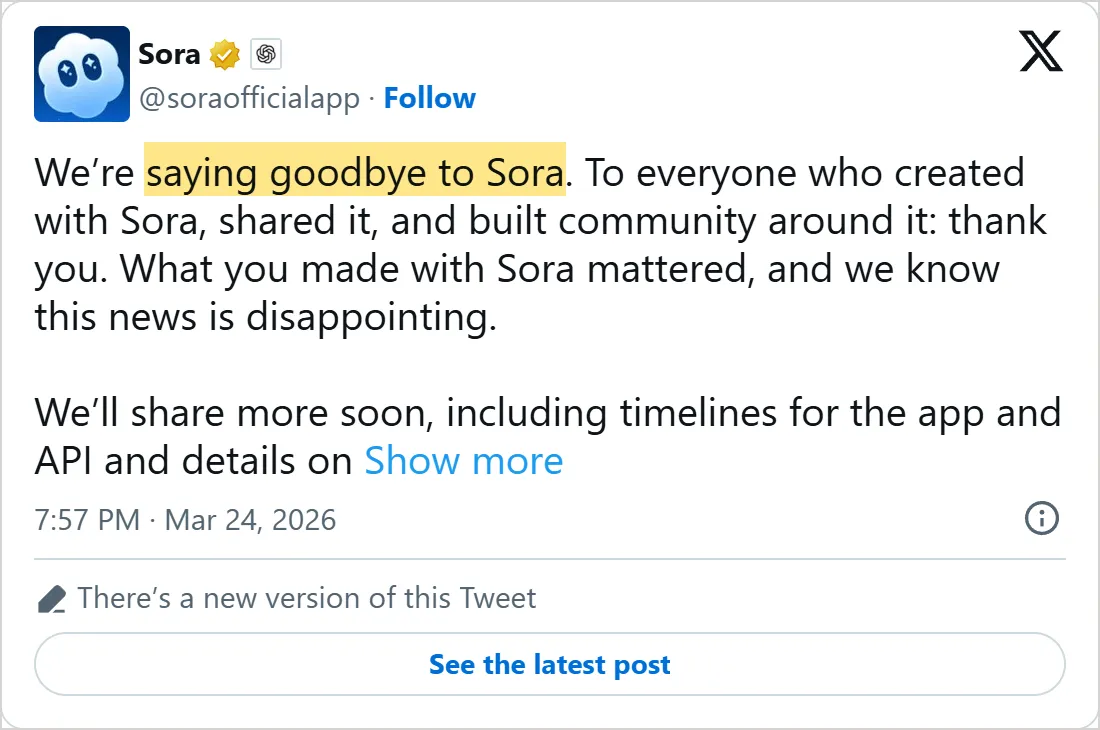
The Sora account's farewell as X's own embed showed it on 5 November 2026, time in UTC. The picture links to the post on X.
Make a video in the Gemini app, step by step
Pick something small that moves: steam over a coffee cup, a dog shaking off water, a paper boat in a gutter. One subject and one action give the model less to get wrong, and they make the result easy to judge.
You can shape the prompt in an ordinary Gemini chat first. Once it reads right, ask for the video in that same chat, and you will not need to open Create video at all.
Keep the first try plain. One subject, one move, no dialogue. Once that works, add one more element, such as music or a spoken line, and check whether the rest still holds.
- On gemini.google.com, click Open Sidebar at the top left, then Create video.
- If you like, pick a template to start from a ready-made style.
- Type your prompt in the text box. Keep it to one subject doing one thing, and say how the camera moves and what you hear.
- To animate your own pictures, click Add image or Add video. You can add one video and up to 5 images.
- Click Submit. The clip can take a few minutes, and that chat stays locked until it is done, so open a new chat if you need Gemini meanwhile.
- Ask for changes in the same chat: remove or replace an object or a character, change the camera angle, or change the scene.
- Under the finished video, click Share, then Download video or Share on YouTube.
You can choose the shape before the video is made. A text prompt gives a wide video by default, while an uploaded picture or clip makes the video match its own shape.
Write a video prompt: subject, action, camera
A video prompt is an image prompt with time added. Everything from AI image prompts still applies: subject, setting, style and light. On top of that you describe the motion, the camera and the sound.
Google's video prompt guide breaks a prompt into parts such as subject, action, scene, camera angle, camera movement, lens, style, lighting, mood and audio. You don't need every part in every prompt. Start with subject, action and scene, then add the camera and the light when a result looks flat.
Gemini Omni has one habit worth knowing. By default it tries to tell a small story in a few different shots. If you want one unbroken take, write "single continuous shot" or "No scene cuts", the wording Google gives for it.
The sample below is Mindket's, written in that order for a bakery's social post. Read it as a pattern rather than a recipe.
Single continuous shot. Close-up of a baker's hands dusting flour over a
round sourdough loaf on a wooden counter, early morning. Slow dolly in toward
the loaf as steam rises from the crust. Warm window light from the left,
shallow depth of field. Sound: a quiet radio in the background and the soft
crackle of the cooling crust. No dialogue.| Move | What the camera does | Example line |
|---|---|---|
| Static shot | Holds still while the subject moves | "static shot" or "fixed camera" |
| Pan | Turns left or right from one spot | "slow pan left across a city skyline at dusk" |
| Tilt | Turns up or down from one spot | "tilt down from the character's shocked face to the revealing letter in their hands" |
| Dolly | Moves closer to the subject or away from it | "dolly out from the character to emphasize their isolation" |
| Zoom | Changes the lens while the camera stays put | "slow zoom in on a mysterious artifact on a table" |
| Aerial or drone shot | Flies high over the scene | "Sweeping aerial drone shot flying over a tropical island chain" |
| Handheld | Moves a little unsteadily, as if held by a person | "handheld camera shot during a chaotic marketplace chase" |
| Arc shot | Circles around the subject | "arc shot around a couple embracing in the rain" |
Zoom and dolly are easy to mix up. A dolly moves the camera itself toward the subject, while a zoom changes the lens and leaves the camera where it is.
Sound, timing and words on screen
Gemini Omni and Veo make sound along with the picture. Left alone, the model picks a soundtrack it thinks fits. That may not be the one you had in mind. Describing the audio matters most when you want music.
Put the sound in its own sentences after the picture, and name each kind you want. Sound effects, background noise, speech and music each get a short line, and anything you do not want gets a short "No" line. Keep each line plain.
You can also time events inside a clip. Plain words work, such as "After 3 seconds, a woman enters the scene." A timecode works too, one line per beat, as in this example from Google's Omni developer guide:
[0-3s] A person is walking
[3-6s] They stop and turn around
[6-10s] They start running- Sound effects: single sounds in the scene, such as "the sound of a phone ringing".
- Background noise: what makes a place feel real, such as "waves crashing on the shore".
- Speech: write who talks and then the words, as in "the man in the red hat says: Where is the rabbit?"
- Music: a line such as "Include calm background music" or "The video has a high energy techno beat".
- What to leave out: short negatives such as "No dialogue" or "No extra sound effects".
- Words on screen: put them in quotes. If a street sign or a shop front will show up anyway, say what it should read.
When Veo's audio comes out poor, Flow skips the clip and returns the credits. To get such clips back without sound, turn on Return silent videos in the project settings.
Start from your own pictures in Google Flow
Flow gives you more control. You choose the model, the length and the shape for each clip, and you can pin the first and last frame to pictures you made or fixed in the editing lesson.
In a project, describe the scene in the prompt box, click the model name and switch to Video. The box starts on Nano Banana Pro, which makes pictures, so this switch is easy to miss. Then set the aspect ratio, the number of outputs, the model and the length, and click Generate.
More tools sit behind the same model menu. Each one is described in Flow's help, and the five below cover most first projects.
For variations, turn on Agent in the prompt box and ask in plain words. Google's example is "Give me 5 variations of this video with different lighting." It saves typing the same prompt five times.
- Frames: under Video Frames, drag one picture to "+ Add start frame" and another to "+ Add end frame", then describe what happens between them. A product shot that ends on your logo is a typical use.
- Ingredients: under Video Ingredients, add pictures of a character, an object or a place, then type @ to call one by name in the prompt. Use subjects on a plain background, and make sure the text agrees with the pictures.
- Extend: click a Veo clip, choose Extend at the bottom and describe how the action continues. For now only Veo clips can be extended.
- Edit a real video: with Gemini Omni Flash, upload a clip, select a stretch of up to ten seconds and describe the change. Up to three follow-up turns keep the context of earlier edits.
- Keep every version: an edit never overwrites the original, and the History panel lists each version with its prompt.
Each generation uses credits, taken when it starts. If it fails or hits a safety filter, Flow returns them within one hour.
How filmmaker Dave Clark and the Flow team build a shot
Dave Clark, a filmmaker who co-founded Promise and is its chief creative officer by his X bio, posted his method for Veo prompts on X on May 24, 2025. He treats each prompt as a short, hyper-specific film script that describes only what the camera sees and feels. Mood, style and shot type come first, then who, what and where, then light and texture, then how the subject and the camera move. For several shots of one scene, he repeats every key visual detail in each prompt and avoids words such as "still" or "continues". One line says Veo makes no audio, which is not true of Veo 3 and later, so use the sound section above for that part.
Google Flow's own account posted a three-step workflow on X on September 9, 2026. Make a still first from a "first-person perspective POV" prompt with a style phrase such as "early 2000s point and shoot". Set that picture as the first frame with frames to video to lock the perspective. Then prompt natural background sound and export at up to 4K.
Put the two together for a scene of several clips. Make the opening still in Flow, start each clip from a frame or an ingredient, and paste the same key details into every prompt, as Clark advises. In the video below, Kevin Stratvert builds a complete commercial in Flow, from storyboard to finished clips.
Describe the state of things within that specific shot as if it's the only one.


A screenshot of X's own embed of the post, taken on 5 November 2026, with the time in UTC. X cuts the post short with Show more. Select it to open the post on X.
Common mistakes
- Writing a whole film into one prompt. One clip holds one moment, so plan a list of shots and make them one at a time.
- Leaving out the camera. Name the angle and the move, even if it is only "static shot", so the result does not depend on chance.
- Forgetting the sound. Describe it, or ask for "No dialogue", rather than taking whatever comes.
- Long, detailed edit requests. For video edits, simple prompts work best in Google's Omni guide: "Make the phone invisible. Keep everything else the same."
- A prompt that fights its pictures. If the photo shows a red mug and the text asks for a blue cup, the model has to pick one.
- Counting on video uploads everywhere. Uploading your own video for edits is not offered in the EEA, Switzerland, the UK and some US states.
- Using someone's face without asking. Google requires rights to every image you upload and forbids videos made to deceive, harass or harm.
Try it yourself
Pick one subject you can describe in a line, such as a cup of coffee on a windowsill. Make every clip in the same tool, so the only thing that changes is your prompt. Small changes teach the most.
Save each clip with its prompt in the file name or a note. By the end you will know which camera words your tool follows and which it ignores.
- Make the same shot three times with a different camera move: static shot, slow dolly in, arc shot.
- Add a sound line, then run it again with "No dialogue" and calm background music.
- Add "single continuous shot" to one version and leave it out of another. Compare the two.
- Animate a photo of your own, such as one you fixed in lesson 2.
- Edit your best clip with one short request, then protect the rest with the keep line from the mistakes list.
Judge each clip on four points: the subject looks the same from start to end, the motion looks natural, the sound fits, and any words on screen are spelled right.
Next: make pictures on your own computer
Every tool in this lesson runs on Google's servers and needs a plan. The last lesson of the course, the ComfyUI tutorial, installs a free app that makes pictures on your own computer and keeps working offline once a model is downloaded.
Your prompts come with you. Nothing is wasted. Subject, setting, style and light carry over word for word, and ComfyUI adds a separate box for what you want left out. The camera moves matter less for a still picture, but framing words such as close-up or wide shot still shape the result.
Check yourself
Your Gemini Omni video jumps between several shots, but you wanted one. What should you add to the prompt?
Show answer
B. "Single continuous shot" or "No scene cuts" By default Omni tries a few different shots, and Google asks you to prompt for a single scene when you want one.
Which camera move brings the camera itself closer to the subject?
Show answer
D. Dolly in A dolly moves the camera. A zoom changes the lens while the camera stays where it is.
You want a Flow clip that opens on your product photo and ends on your logo. Which feature fits?
Show answer
A. Start and end frames Frames let you drag one picture to the start and another to the end, then describe what happens between them.
Where can you still make a new video with Sora?
Show answer
C. Nowhere, because OpenAI closed both the app and the API OpenAI closed the Sora app and website first and the API later, and it now offers only an export of old videos.
Frequently asked questions
How long can an AI video be?
One clip is short. Flow offers four to ten seconds, and the Gemini app makes 10 second videos. To go longer, extend a clip or join several in a video editor. The Omni developer guide allows extensions ten seconds at a time, up to 40 seconds in total.
Can I make AI videos for free?
Not with these two tools. Video in the Gemini app needs a Google AI plan, and Flow needs Google AI Plus, Pro or Ultra. Some Google Workspace business and school plans include Flow with 50 credits a day.
How can I tell if a video was made with AI?
Google embeds SynthID, an invisible watermark, in every video the Gemini app makes and in everything Flow makes. Upload the file to Gemini and ask whether Google AI made it. In Flow, the Visible watermarking switch under your profile picture adds a mark people can see.
Can I write video prompts in languages other than English?
You can try. Google's developer guide for Omni lists English as fully supported and other languages as not yet evaluated, so results can vary. If a prompt in your language gives odd results, run the same prompt in English.
Sources
- Google: Generate videos with Gemini Apps https://support.google.com/gemini/answer/16126339?hl=en
- Google: Gemini Omni overview https://gemini.google/overview/video-generation/
- Google Flow Help: Get started with Google Flow https://support.google.com/flow/answer/16353333?hl=en
- Google Flow Help: Create videos in Google Flow https://support.google.com/flow/answer/16353334?hl=en
- Google Flow Help: Edit videos & build scenes in Google Flow https://support.google.com/flow/answer/16935718?hl=en
- Google Flow Help: Google Flow models & supported features https://support.google.com/flow/answer/16352836?hl=en
- Google: Gemini Omni Flash (Gemini API docs) https://aistudio.google.com/docs/omni
- Google Cloud: Video generation prompt guide https://docs.cloud.google.com/gemini-enterprise-agent-platform/models/video/video-gen-prompt-guide
- OpenAI Help Center: What to know about the Sora discontinuation https://help.openai.com/en/articles/20001152-what-to-know-about-the-sora-discontinuation
- OpenAI Help Center: ChatGPT capabilities overview https://help.openai.com/en/articles/9260256-chatgpt-capabilities-overview
- Google AI Studio: Changelog https://aistudio.google.com/docs/changelog
- Sora on X, March 24, 2026 https://x.com/soraofficialapp/status/2036532795984715896
- Dave Clark on X, May 24, 2025 https://x.com/Diesol/status/1926300507397599412
- Google Flow on X, September 9, 2026 https://x.com/FlowbyGoogle/status/2097763469445521724
- Kevin Stratvert on YouTube: How to Use Google Flow (Step-by-Step Tutorial) https://www.youtube.com/watch?v=0vQ7UEe7rLg