
Before you start: what Nano Banana is
Editing here means changing a picture that already exists. You upload a photo, or pick one the app made, and describe the change in words. There are no brushes, layers or masks to learn. If you can describe the change to a friend, you can ask for it.
"Nano Banana is the name for Gemini's native image generation capabilities," in Google's own words. It covers a family of models rather than one. Which one edits your photo depends on the model you pick in Gemini and on your plan, and the two Google pages read for this lesson disagree on the default.
The Gemini Apps help page says Nano Banana 2 handles a request when Gemini is set to Flash or Pro, and Nano Banana 2 Lite when it is set to Flash-Lite. Google's image generation overview says subscribers to a Google AI plan get Nano Banana 2.1, its best image model. Both pages agree that the free tier can edit.
To edit in Gemini you must be signed in and 18 or over. ChatGPT Images is on every ChatGPT plan, on the web, iOS and Android. In both apps, stick to photos you own or have permission to edit, and think twice about pictures of other people or private papers. The lesson on what AI apps do with your data explains what happens to an upload.
| Name | Model in the Gemini API | Where you meet it |
|---|---|---|
| Nano Banana 2 Lite | gemini-3.1-flash-lite-image | Gemini with Flash-Lite selected. Not designed for several reference images or many edits in a row |
| Nano Banana 2 | gemini-3.1-flash-image | Gemini with Flash or Pro selected, free |
| Nano Banana 2.1 | gemini-nano-banana-2.1 | Gemini with a Google AI plan |
| Nano Banana Pro | gemini-3-pro-image | Redo with Pro, for paid subscribers |
| Nano Banana | gemini-2.5-flash-image | The first model with the name, now listed as legacy |
Edit a photo in Gemini, step by step
Start with a photo where one thing is clearly wrong: a coffee cup on a product shot, a gray sky, a sofa in the wrong color. One obvious change makes it easy to see whether the rest survived.
The template below is copied from Google's image docs, where it is the pattern for changing one part of a picture. Fill in the brackets, and keep the last sentence even when it feels redundant. It is the part that tells the model to leave the rest of the photo alone.
Google's filled-in version reads: "Using the provided image of a living room, change only the blue sofa to be a vintage, brown leather chesterfield sofa. Keep the rest of the room, including the pillows on the sofa and the lighting, unchanged." Notice that it names the pillows, the small thing most likely to vanish with the sofa.
The help page lists three starting points. You can edit a picture Gemini made, upload a photo and ask for changes, or upload several photos and ask for a new picture built from them. Gemini can also keep an avatar made from a recording of your face and voice, so you can put yourself in pictures without uploading a photo each time.
Using the provided image, change only the [specific element] to [new
element/description]. Keep everything else in the image exactly the same,
preserving the original style, lighting, and composition.- On gemini.google.com, click Open Sidebar at the top left, then Library, and click the image you want to change. For a photo from your computer, upload it in a chat instead.
- Under the image, click Chat.
- In the text box at the bottom, type the change with the template: one element, its new look, and the sentence that keeps everything else.
- Click Submit, then open the result at full size next to the original.
- Ask for the next change in the same chat. Google's docs call multi-turn conversation the recommended way to iterate on images, and each turn starts from the last picture.
- To keep a version, hover over it and click Download full size, or click More and Export to Docs. Downloads are 2K with a Google AI plan and 1K without one.
Paid subscribers can click More and then Redo with Pro on an image made with Nano Banana 2 or 2 Lite. Once you reach the daily quota of Nano Banana 2 images, that redo stops working too.
Edit a photo in ChatGPT
ChatGPT gives you two ways in. You can describe the change in the chat, as in Gemini, or mark the area first with a selection tool and then describe it. Marking helps when a photo has two similar things, such as two mugs on one table.
The marking is rough. OpenAI's help page says highlights are not always precise and edits may spread past the area you picked. So name the area in your words as well: "only the mug on the left".
Pick the route by the photo. When the target is obvious, such as the only car on an empty street, typing the change is enough. When the photo is busy and your words could point at more than one thing, mark it first.
- Open the editor. Upload your photo in a ChatGPT chat, or pick a picture ChatGPT made, then select the image.
- Mark the area. Choose Select and paint over the part you want changed. Undo and Redo fix a stroke, and Cancel starts over.
- Describe the change in the editor text box, then choose Save when you are happy.
- Change the shape. The Aspect ratio button makes the picture again in a new shape, such as tall for a phone story.
- On a phone, tap a picture ChatGPT made to open it full screen, choose Select, set the brush size with the slider, tap Next and describe the change. The mobile controls add Resize and Remove.
- Cut out the background. ChatGPT Images can follow an instruction to make the background transparent, which suits a product photo or a logo you will place on a slide.
- Find it later. Every picture you make is saved under Images on the web and in the app. To delete one, delete the conversation it came from.
- From a sketch. In the mobile app, type @ in the message box, choose Sketch, draw, and add a line on the style and colors you want.
Prompts that change one thing and keep the rest
Every good edit prompt has two halves: the change, and the list of what stays. OpenAI's prompting guide puts it plainly: say "change only X" and list the details to preserve, such as identity, layout, lighting or labels.
The keep list matters most for faces, logos and products. A model adding a hat to a cat will match the photo's style, lighting and perspective, by Google's account. A face is different, because small shifts read as a different person. Describe the face or the logo in detail inside the edit request, and repeat that description in each follow-up.
Google's own example puts a logo on a shirt and starts by describing the wearer: "the woman with brown hair, blue eyes, and a neutral expression". Then it asks that her face and features remain completely unchanged. OpenAI's clothing example goes further and lists what may not move: "Do not change her face, facial features, skin tone, body shape, pose, or identity in any way." A keep list that long looks fussy. It is also the reason the person still looks like themselves.
When you merge photos, number them. "The dress from the first image, the woman from the second" leaves nothing to guess. In Gemini, check the model first: Nano Banana 2 accepts several reference images, while Nano Banana 2 Lite is not built for them.
Google's docs put the ceiling at 14 reference images in one request, and split it by job. Object images keep a thing looking exactly as it does. Character images keep a person consistent from picture to picture. The chart shows how many of each the models take.
The table shows the pattern for six common jobs. Quoted lines are from Google's or OpenAI's examples, and the rest are short patterns to fill in. Swap in your own objects and keep the closing line that protects the rest.
| Job | What to say | From |
|---|---|---|
| Remove an object | Name it, then: "Do not change anything else." | OpenAI prompting guide |
| Change one part | The change-only template above, plus the small things nearby that must stay | Google image docs |
| Restyle the whole photo | Transform the photo into a named style and preserve the original composition | Google image docs |
| Combine photos | Which element from image 1 goes where in image 2, then "Do not change anything else." | OpenAI prompting guide |
| Change the weather | "Make it look like a winter evening with snowfall." | OpenAI prompting guide |
| Sketch to photo | "Preserve the exact layout, proportions, and perspective." and "Do not add new elements or text." | OpenAI prompting guide |
Source: Google: Nano Banana image generation (Gemini API docs) (read November 5, 2026)
The Gemini team's headshot prompt and Josh Woodward's watermark switch
The Gemini app's own account posted a thread on turning a casual photo into a professional headshot, ending with the full prompt on X on September 29, 2025. The prompt opens by holding on to the person: their exact facial structure, identity and key features. Only then does it set the framing from the chest up with room above the head, a smart casual blazer, a plain studio background, the light and even the lens.
That is the keep list from the section above, applied to a face. For a portrait of your own, copy its order: who must stay the same first, then the frame, the clothes, the background and the light. Repeat the first line in every follow-up, since faces drift over several turns.
Josh Woodward, a vice-president at Google whose X bio lists Google Labs, the Gemini app and Google AI Studio, announced a change on X on August 14, 2026. You can now switch visible watermarks on or off in Gemini and Flow, for images, videos and songs, except in countries where the law requires them. The invisible SynthID mark is separate, and Google's image docs say every generated image carries one.
A professional, high-resolution, profile photo, maintaining the exact facial structure, identity, and key features of the person in the input image.
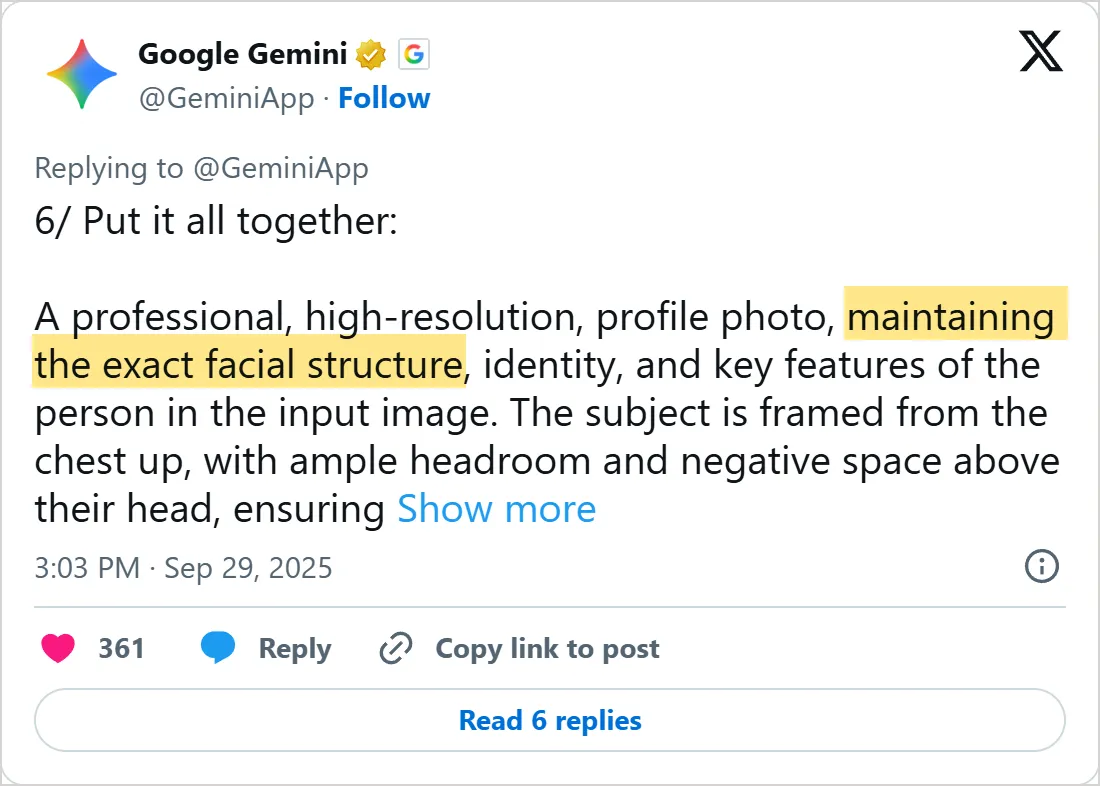
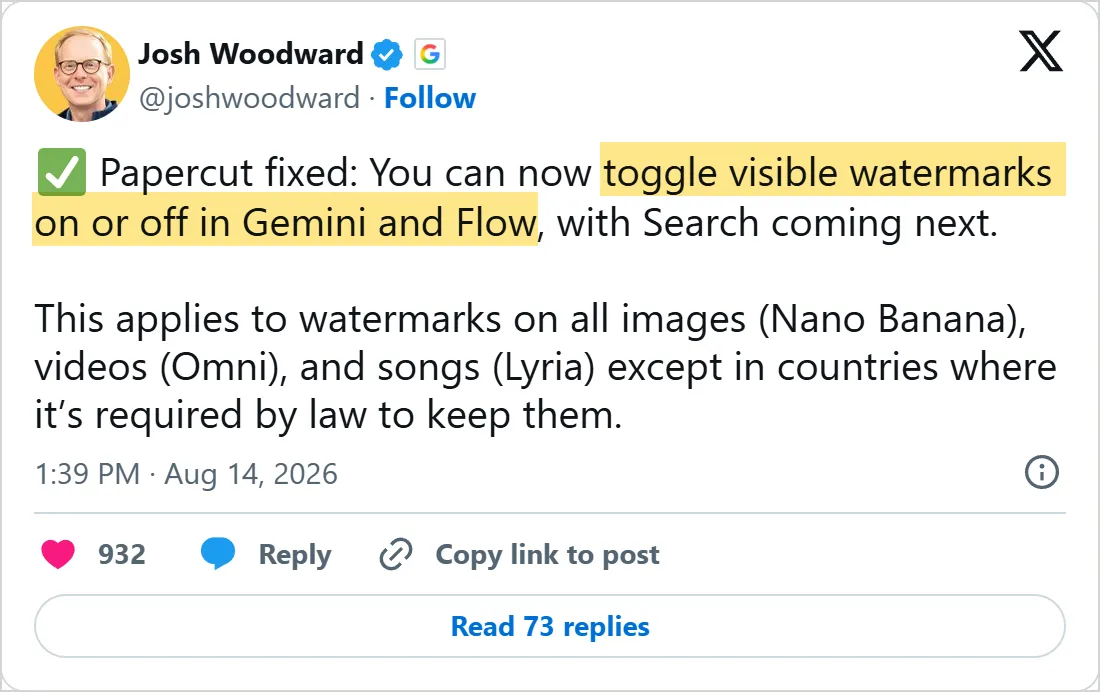

Screenshots of X's own embeds of the posts, taken on 5 November 2026, with the time in UTC. X cuts the Gemini app's post short with Show more. Select one to open the post on X.
Common mistakes
- Describing the whole picture again when you want one change. Name the element, then add the keep line.
- Trusting the selection box. A rough highlight can spill over, so say which area in words too.
- Uploading three photos without saying which is which. The model has to guess the roles.
- Merging photos while Gemini is set to Flash-Lite. Switch to Flash or Pro first.
- Letting a face drift over many edits. Repeat "same face, same hairstyle, same expression" in every follow-up.
- Asking for five edits in one message. If the result is off, you cannot tell which instruction caused it.
- Skipping the small print. After each turn, read every word on a label, sign or packet at full size, because lettering can change along with the edit.
- Editing someone's photo without asking them. Google's terms forbid violating other people's copyright or privacy.
Try it yourself
Use one photo of your own: a desk, a pet, a product. Run each exercise in the same chat, so you can watch how the picture holds up over several turns.
Then run the same five in the other app. The same prompt will not give the same picture, and seeing the two side by side shows you which app keeps your photo closer to the original.
- Remove one small object and add "Do not change anything else."
- Change the color of one item with the change-only template.
- Restyle the photo as a watercolor painting while keeping the composition.
- Merge it with a second photo, naming image 1 and image 2 and the job of each.
- Change the weather or the time of day, then compare the first and last versions at full size.
Check each result for three things: the change you asked for, nothing else moved, and faces or labels still match the original. If one fails, rerun that exercise with a longer keep list before you change anything else.
Next: make AI videos
An edited still is often the first frame of a video. Both Gemini and Google Flow can start a clip from your own images, so the picture you fixed here can move in the next lesson, how to make AI videos.
For a brand-new picture rather than an edit, go back to AI image prompts, which covers style, framing and text from scratch.
Check yourself
In Gemini on a computer, where do you find an image you made earlier so you can edit it?
Show answer
B. Open Sidebar, then Library The help page opens the sidebar, then Library, then the image, and you edit it from Chat under the picture.
You want to change only the sofa in a living room photo. Which prompt follows Google's template?
Show answer
A. Change only the blue sofa to a brown leather sofa. Keep everything else in the image exactly the same. The template names one element, gives its new look and says that everything else stays the same.
ChatGPT's edit keeps spilling past the mug you marked. What helps?
Show answer
D. Name the area in the prompt too, such as "only the mug on the left" Highlights are not always precise, so name the area in your prompt too.
Gemini is set to Flash-Lite and you want to merge two photos. What should you do first?
Show answer
C. Switch the Gemini model to Flash or Pro Flash-Lite uses Nano Banana 2 Lite, which is not designed for several reference images.
Frequently asked questions
Is Nano Banana free?
Partly. The everyday model costs nothing in the Gemini app, but it has a daily quota, and Google says paid plans get higher generation limits. The best model and Redo with Pro need a Google AI plan.
Can I edit photos of real people with AI?
Yes, within limits. Gemini edits only for users who are 18 or over, and you must have the rights to the photo. In ChatGPT, a parent or guardian can control whether a linked teen account may create or edit images.
How can I tell if a picture was made with Gemini?
Upload it to the Gemini app and ask whether Google AI made it. Gemini looks for SynthID, an invisible watermark Google adds to the images it generates. A missing visible watermark proves nothing, since Josh Woodward announced in August 2026 that you can switch it off, except where the law requires it.
Why did the AI change parts I did not ask it to change?
Small shifts happen even with a careful request. In OpenAI's prompting guide, details you meant to keep can still change over repeated turns, so restate them and inspect every result. If one area must stay pixel for pixel the same, paste the approved edit back into the original in a photo editor.
Sources
- Google: Generate & edit images with Gemini Apps https://support.google.com/gemini/answer/14286560?hl=en
- Google: Gemini image generation overview https://gemini.google/overview/image-generation/
- Google: Nano Banana image generation (Gemini API docs) https://aistudio.google.com/docs/image-generation
- OpenAI Help Center: Images in ChatGPT https://help.openai.com/en/articles/11084440-images-in-chatgpt
- OpenAI: Image prompting guide https://developers.openai.com/api/docs/guides/image-prompting
- Google Gemini on X, September 29, 2025 https://x.com/GeminiApp/status/1972678638542766459
- Josh Woodward on X, August 14, 2026 https://x.com/joshwoodward/status/2088259242423968162
- Google Cloud Tech on YouTube: Refining your vision, a guide to AI image editing https://www.youtube.com/watch?v=E_7P2SIdkIg