
Before you start
A sub-workflow is a regular workflow with one special first node, so the earlier lessons are all you need. Two version notes matter. Sub-workflow conversion arrived in n8n 1.97.0. And n8n 3.0, in early access since 27 October 2026 per the release notes, removes two ways of pointing at a sub-workflow that older node versions offered. Both come up below.
Sub-workflows are also free of the quota. The executions page says that when a workflow calls another one with the Execute Sub-workflow node, only the parent execution counts.
n8n 1.97.0
Selected nodes can be converted into a sub-workflow from the canvas.
Source: n8n Docs: Release notes 1.x (read November 5, 2026)
n8n 2.23
A version 1.2 trigger returns the items from every run of a looped last node.
Source: n8n Docs: Release notes (read November 5, 2026)
n8n 2.32
Converting nodes brings along the AI sub-nodes attached to them, such as chat models and memory.
Source: n8n Docs: Release notes (read November 5, 2026)
n8n 2.37
The Any workflow caller policy is deprecated ahead of its removal in n8n 3.
Source: n8n Docs: Release notes (read November 5, 2026)
n8n 3.0 in early access
The Local File and URL sources are gone from the Execute Sub-workflow node.
Source: n8n Docs: v3.0 breaking changes (read November 5, 2026)
Build a sub-workflow and call it
The sample object below is for this lesson. It goes into the trigger's JSON example mode and describes what the parent must send:
{
  "email": "ada@example.com",
  "plan": "pro"
}- Create a new workflow. This is the sub-workflow. The docs also let you create one from the parent: in the Execute Sub-workflow node, choose the Database source and From list, then Create a sub-workflow.
- Add the Execute Sub-workflow Trigger node. Searching under triggers, it also appears as When Executed by Another Workflow.
- Set Input data mode. For this sample, choose Define using JSON example and paste the object.
- Add the nodes that do the work, then select Save. The docs warn that a sub-workflow with errors cannot be triggered by its parent.
- Open the parent workflow and add an Execute Sub-workflow node. Under Source, choose Database, then pick the sub-workflow in From list or enter its ID in Workflow ID. The ID is the text after
/workflow/in the sub-workflow's URL. - Fill in the input items n8n pulled in from the sub-workflow's trigger, then run the parent.
- Open the Execute Sub-workflow node and select View sub-execution. The sub-workflow's own execution links back to the parent run.
How data goes in and comes back
Data crosses in two moves. The Execute Sub-workflow node passes its data to the trigger of the sub-workflow, and the last node of the sub-workflow sends data back to the calling node. The caller's Mode controls the first move: Run once with all items passes every input item into one execution, and Run once for each item runs the sub-workflow once per item. The option Wait for Sub-Workflow Completion decides whether the parent waits at all.
The second move has a version catch. When the last node runs several times, for example after Loop Over Items, a version 1.2 trigger returns the items from every run, concatenated per branch. Versions 1 and 1.1 keep the old behavior of returning only the last run, with an Items to Return option to merge all runs. The n8n 2.23 release notes, dated 27 May 2026, describe the change, and callers that are LangChain tools always keep last-run-only output.
If you remove a requested input in the caller, the sub-workflow receives null for it, and Attempt to convert types tries to match the type the sub-workflow asked for.
| Input data mode | What you define | Trade-off |
|---|---|---|
| Define using fields below | Input names and data types | The caller shows them as fields and fills them in for you |
| Define using JSON example | An example object with the expected items and types | Quick to write, and the example doubles as documentation |
| Accept all data | Nothing | No required inputs, so the sub-workflow handles every odd or missing value itself |
Split a big job into batches
The memory page recommends sub-workflows when a workflow runs out of memory, and the pattern is concrete. It looks counterintuitive at first, since it adds at least two nodes. The gain is that the sub-workflow holds only the data for its current batch, and that memory is free again when the batch ends.
- Put a Loop Over Items node in the parent to cut the items into batches.
- Inside the loop, call the sub-workflow with an Execute Sub-workflow node.
- Let the sub-workflow do the heavy work for one batch, then return only a small result such as a count or a status, not the raw rows.
Convert nodes you already built
Sub-workflow conversion moves selected nodes into a new sub-workflow and leaves an Execute Sub-workflow node in their place. Select the nodes, right-click the canvas background and choose Convert to sub-workflow. Expressions that reference other nodes are updated and added as parameters on the new trigger.
The selection rules are strict. The nodes must form one continuous run that enters through at most one node and leaves through at most one node, and the selection cannot include a trigger. A Merge node cannot be the entry, and an If node cannot be the exit. Then check what the docs list as caveats:
- Input and output types: both allow every type by default. Set constraints by hand in the trigger and in the Edit Fields node labeled Return.
- Execution order: the new workflow uses v1 ordering whatever the parent used. You can change it back in the settings.
first(),last()andall(): n8n may rewrite them and adds suffixes such as_firstItem,_lastItemand_allItemsto parameter names, so review each one.itemMatching: it needs a fixed index. An expression for the index does not convert.- AI nodes: the docs still say to select every sub-node of an agent and to duplicate nodes shared with other agents first. Since n8n 2.32 the conversion brings attached AI sub-nodes along by itself.
When to split and who may call
The trigger page gives two reasons to split. One is reuse: several workflows that pull data from different sources can all call one workflow that generates the report. The other is size, and the batch pattern above is its sharpest form. A short linear flow gains nothing, and every call adds a second execution to open when you debug, which is what View sub-execution is for.
Permissions come into it too. In the sub-workflow's settings, This workflow can be called by limits its callers.
What n8n's team says about splitting work into sub-workflows
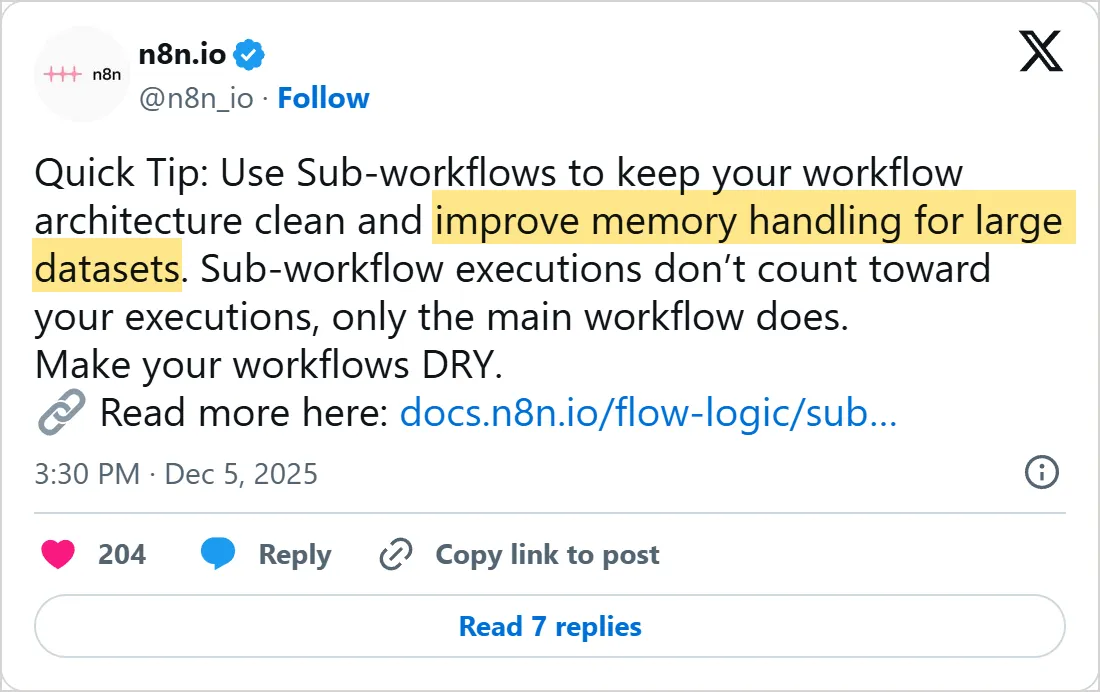
On 5 December 2025 the n8n team posted a quick tip on X: use sub-workflows to keep a workflow's architecture clean and to handle memory better on large datasets. The same post restates the quota rule from the start of this lesson, where only the main workflow's run counts. The batch pattern with Loop Over Items is that tip put to work.
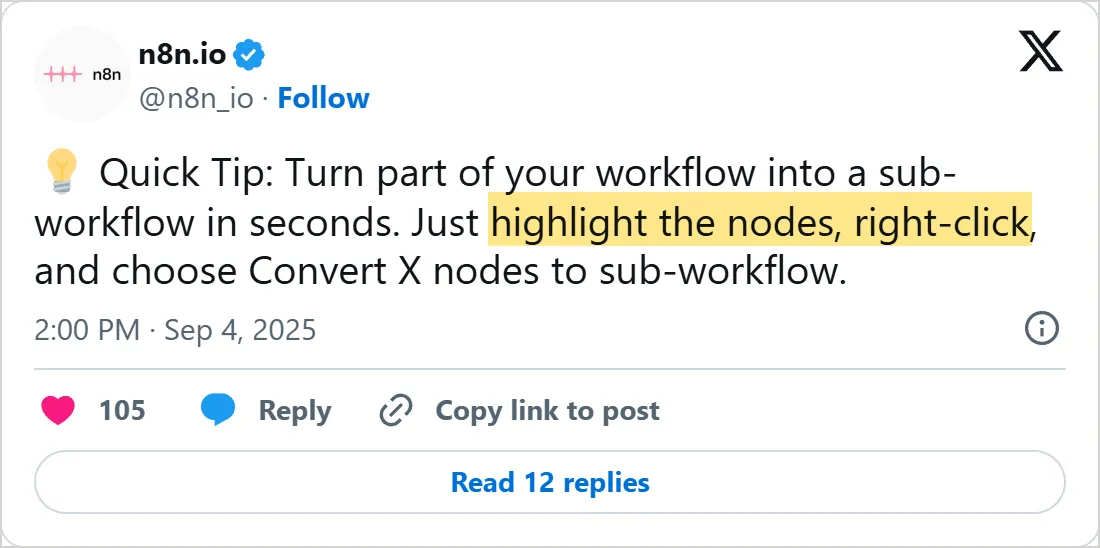
Three months earlier, on 4 September 2025, the team shared the shortcut on X: highlight the nodes, right-click and choose Convert X nodes to sub-workflow. The menu label in the post carries the number of nodes, and the docs call the entry Convert to sub-workflow. Try it on three connected nodes first, then read every expression it rewrote.
Use Sub-workflows to keep your workflow architecture clean and improve memory handling for large datasets.

Screenshots of X's own embeds of the posts, taken on 5 November 2026, with the time in UTC. Select a screenshot to open the post on X.
Common mistakes
- Calling a sub-workflow that has errors. The docs say the parent cannot trigger it, so fix and save the sub-workflow first.
- Choosing Accept all data out of habit. The sub-workflow then defines no required inputs, and the caller shows no input fields, so every check falls on you.
- Turning off Wait for Sub-Workflow Completion and then building steps that need the result. With it off, the parent moves on without waiting.
- Keeping the Local File or URL source. n8n 3.0 removed both from the Execute Sub-workflow node, and nodes that still use one fail. Import the sub-workflow and use Database, or paste its JSON with Define Below (Parameter on node versions 1.1 and older).
- Expecting every run of a looped last node to come back through an older trigger version. Those return only the last run unless you set Items to Return.
- Converting a selection with two entry points or a trigger inside it. The conversion needs one entry node, one exit node and no trigger.
Try it yourself
- Build the sample pair, then remove one input in the parent's node and read what arrives in the sub-workflow. The docs say it receives null for that item.
- Select three connected nodes in a workflow of yours and convert them. Check every expression that used
first(),last()orall(). - Switch the caller from Run once with all items to Run once for each item and compare how many sub-executions the run creates.
- Narrow the caller setting on your sub-workflow to something tighter than Any workflow and see how the parent reacts.
What to learn next
Lesson 3 goes inside a single node: the Code node, for the transformations no built-in node covers. A sub-workflow is also how an AI agent reaches your own logic. The Call n8n Workflow Tool node, which the AI agent lesson mentions, calls a workflow that starts with the Execute Sub-workflow Trigger. And Mindket's n8n workflows show how finished workflows split their work.
Check yourself
Which node must a sub-workflow start with?
Show answer
C. Execute Sub-workflow Trigger The sub-workflow starts with the Execute Sub-workflow Trigger, which the calling node passes its data to.
Which input data mode leaves the sub-workflow to handle missing or odd values itself?
Show answer
A. Accept all data Accept all data defines no required inputs, so the sub-workflow has to cope with any input.
A parent loops over thousands of rows and memory runs out. What does the lesson suggest?
Show answer
D. Do the heavy work per batch in a sub-workflow and return a small result The sub-workflow holds only its current batch, and its memory is free again when the batch ends.
An Execute Sub-workflow node still uses the Local File source. What happens on n8n 3.0?
Show answer
B. It fails with an error n8n 3.0 removed the Local File and URL sources, and nodes that still use one fail.
Frequently asked questions
How do I call a workflow from another workflow in n8n?
Add an Execute Sub-workflow node to the caller, set its Source to Database, then pick the target from the list or paste its ID, the text after /workflow/ in its URL. The target needs its trigger in place first.
Do sub-workflow executions count toward my n8n plan?
No. The docs say sub-workflow executions don't count toward the plan's monthly execution or active workflow limits, and that only the parent, top-level execution counts toward the quota.
How do I find a sub-workflow's execution from the parent?
Each call leaves its own execution, linked in both directions. From the parent, the Execute Sub-workflow node has a View sub-execution link, and the sub-workflow's run links back to the parent.
Can I turn nodes I already built into a sub-workflow?
Yes. It arrived in n8n 1.97.0 as Convert to sub-workflow on the canvas context menu. The selection must be a continuous group with one entry, one exit and no trigger.
Can an AI agent call a sub-workflow?
Yes. Attach it to the agent as a tool sub-node, and the agent decides when to run it, the same way it picks the Calculator or Wikipedia tool in the n8n course.
What changed for sub-workflows in n8n 3.0?
The Local File and URL sources are gone, and the Any workflow caller policy is on its way out. Before you upgrade, n8n's announcement asks you to open Settings, then Migration Report, on version 2.39 or later.
Sources
- n8n Docs: Break workflows into smaller parts https://docs.n8n.io/build/flow-logic/break-workflows-into-smaller-parts
- n8n Docs: Convert to sub-workflows https://docs.n8n.io/build/flow-logic/convert-to-sub-workflows
- n8n Docs: Execute Sub-workflow node https://docs.n8n.io/integrations/builtin/core-nodes/n8n-nodes-base.executeworkflow
- n8n Docs: Execute Sub-workflow Trigger node https://docs.n8n.io/integrations/builtin/core-nodes/n8n-nodes-base.executeworkflowtrigger
- n8n Docs: Understand executions https://docs.n8n.io/build/understand-workflows/understand-executions
- n8n Docs: Configure workflow settings https://docs.n8n.io/build/manage-workflows/configure-workflow-settings
- n8n Docs: Fix memory issues https://docs.n8n.io/deploy/host-n8n/configure-n8n/scaling/fix-memory-issues
- n8n Docs: Release notes https://docs.n8n.io/changelog/release-notes
- n8n Docs: v3.0 breaking changes https://docs.n8n.io/changelog/v30-breaking-changes
- n8n Docs: Release notes 1.x https://docs.n8n.io/changelog/release-notes-1.x
- n8n Blog: Introducing n8n 3.0 https://blog.n8n.io/introducing-n8n-v3/
- n8n.io on X: use sub-workflows to improve memory handling, 5 December 2025 https://x.com/n8n_io/status/1996965358293438760
- n8n.io on X: convert nodes to a sub-workflow, 4 September 2025 https://x.com/n8n_io/status/1963603014188462414
- n8n on YouTube: n8n Advanced Course (4/8) - Subworkflows https://www.youtube.com/watch?v=xr05Ie_Hkyg