
Before you start
You need one of two things: a chat app such as ChatGPT, Claude, Gemini or Microsoft Copilot, or the draft button inside your inbox. You can type the prompts below into any chat app. The buttons depend on your account.
Google's help page says Gmail's Help me write needs an eligible Google Workspace or Google AI plan, or a personal Google account in the US with a supported language. Microsoft's page on Copilot in Outlook tells you to ask your IT admin if you cannot see it.
Pick one email you have to send this week. A real one teaches faster than a made-up one. Keep the thread open so you can paste from it.
Write a draft in five steps
The prompt below uses all five steps. It is our own sample, not a vendor template, so swap in your details.
Why one sample email of yours helps
Examples are one of the most reliable ways to steer Claude’s output format, tone, and structure.
Write an email to Dana Lee, a client at Northwind. She is upset that our report is two days late.

What I want: apologize once, give the new delivery date ([date]) and offer a 15-minute call.
Tone: calm and direct, no excuses. Under 120 words.

Here is an email I wrote before, so you can match my style:
[paste one of your own emails]- Name the reader. Say who gets the email and how you know them. Google's help page gives the same advice: name the recipient or group, and state the subject and the action you need.
- Say what you want them to do, and by when. One clear ask keeps the draft short and gives the reader one thing to answer.
- Give the facts yourself. Put dates, amounts and names in the prompt. Google warns that Gemini may suggest inaccurate information, so never leave a date or a price for the app to fill in.
- Choose the tone and length in plain words. "Calm and direct, under 120 words" gives the app more to work with than "professional". Google suggests tone words such as formal or casual.
- Paste one of your own emails as a sample. The quote above is Anthropic's reason. Remove names and private details from the sample first.
Reply, rewrite and shorten
Most of the work happens after the first draft. Ask for one change at a time, so you can tell which request helped. Four common requests are below.
| Job | Paste in | Say |
|---|---|---|
| Reply to an email | The message you received, plus your answer in a few words | Reply to this email. My answer is yes, but not before Monday. Keep it friendly and short. |
| Change the tone | Your own draft | Rewrite this to sound warmer. Keep the facts and the length. |
| Shorten | Your own draft | Cut this to 80 words. Keep the deadline and the request. |
| Fix one part | The whole email | Rewrite only the third paragraph. Leave the rest as it is. |
The buttons in Gmail and Outlook
Both inboxes can write the draft where you already work, so you skip the copying between windows. The table sets them side by side, as their help pages describe them on 4 November 2026.
| Gmail: Help me write | Outlook: Draft with Copilot | |
|---|---|---|
| Start | Click Compose, type in the prompt bar at the bottom, then click Create | Select Home, then New mail, then the Copilot icon and Draft. Type a prompt and select Generate |
| Change it | Use Formalize, Friendly or Shorten, or type a new instruction | Use the tone and length options (Adjust in classic Outlook), or edit the prompt and generate again |
| Keep it | Undo and Redo switch between drafts | Select Keep it, edit the text, then Send |
| A limit to know | It can use your other emails and Drive files to match your style. Click Sources to see which ones | In new Outlook and Outlook on the web it does not support plain-text messages. Switch to HTML under Settings, Mail, Compose and reply |
On Outlook for iOS and Android, Coaching by Copilot reviews a message you wrote yourself. Microsoft says it needs at least 100 characters before it gives feedback.
Check it before you send
Read the draft as the person who gets it. A smooth paragraph can still carry a wrong date.
Google's page says Gemini may suggest inaccurate or inappropriate information, and it tells you not to rely on Gemini as medical, legal, financial or other professional advice. The same caution fits any app, so the last read is yours.
Names and titles
Spell the reader's name and company the way they do.
Dates and numbers
Compare each one with your calendar or notes, not with the draft.
Promises
Remove any commitment you did not mean to make, such as a discount or a deadline.
Attachments and links
If the text mentions a file, attach it. If it has a link, click it.
Tone
Read it aloud. Cut anything you would not say to the person.
What the Claude team posted about email in Outlook
Outlook gained a second AI drafter this year. Anthropic's Claude account posted on X on 7 May 2026 that Claude for Outlook was in public beta, on the day Claude for Excel, PowerPoint and Word became generally available. The second line of the post is the one to read twice: Claude carries your whole conversation as it moves between the Microsoft apps.
For email, that context can include a figure from the spreadsheet you were just editing. Anthropic's announcement says the add-in sorts your inbox into what needs a reply, what it can draft and what is noise. Its replies land as drafts in Outlook's compose pane, with the recipients, the subject and the body already filled in.
The add-in fills in the To line too, which puts it on the list of five checks above. Nothing goes out until you click Send, the announcement says, and that click is where your read happens. The beta is on every paid Claude plan, and at work an admin deploys it from Microsoft AppSource.
As Claude moves between your Microsoft apps, it carries the full context of your conversation.
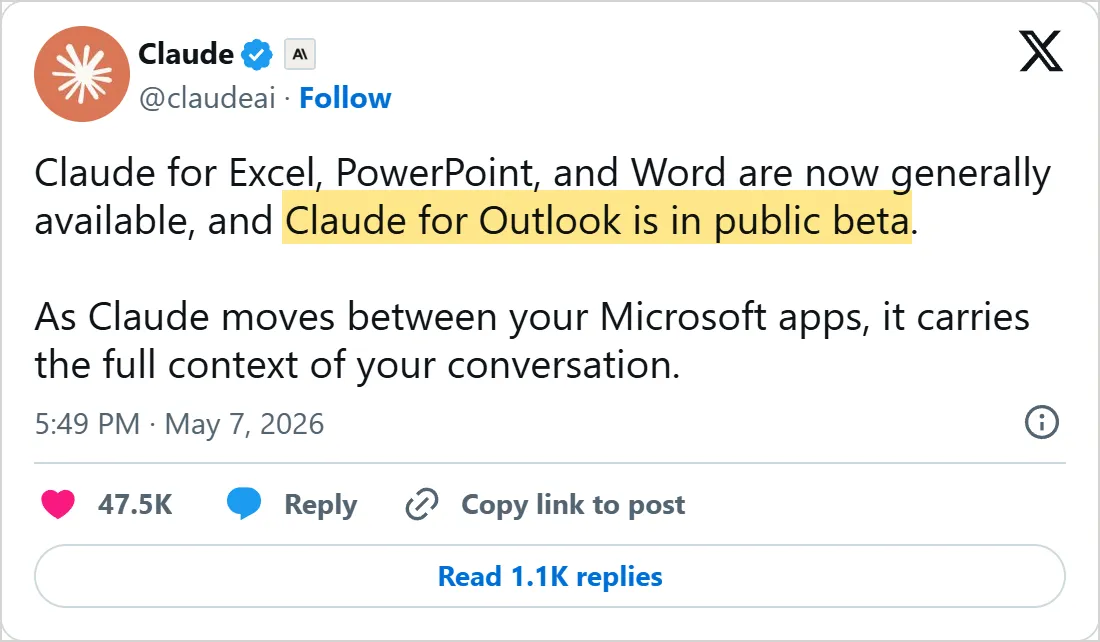
A screenshot of X's own embed of the post, taken on 5 November 2026, with the time in UTC. Select it to open the post on X.
Common mistakes
- Asking for "an email about the project" and nothing else. The app has to guess the reader, the goal and the tone, so the draft is generic.
- Letting the app supply facts. A date or a price you did not give it is a guess.
- Sending the first draft. Cut the opening lines that say nothing and add the one detail only you know.
- Pasting private material. Remove what you would not forward to a stranger, and see lesson 3 for what Google and Anthropic say happens to chats.
- Asking for five changes in one request. Change one thing, read the result, then ask for the next.
Try it yourself
- Choose a real email you owe someone and write the prompt with the five steps.
- Run it twice: once with a sample of your own writing, once without. Compare how each one sounds.
- Ask for a shorter version and a warmer version, and keep the one you would sign.
- Run the five checks, then send it.
Next: research with AI
The habits here come from prompt engineering basics: give context, show an example, ask for a format and make small changes. The next lesson, how to use AI for research, moves from writing to finding things out, where checking the answer matters even more.
A prompt you reuse every week is worth saving. Skills are saved instructions an agent loads when a task matches.
Check yourself
Which of these belongs in your prompt before you ask for a draft?
Show answer
B. The reader, what you want from them and the tone The app cannot guess who reads the email, what you want or how it should sound, so the first step is to say all three.
Why paste one of your own emails into the prompt?
Show answer
C. An example steers the tone and structure of the draft Anthropic calls examples one of the most reliable ways to steer tone, format and structure.
Draft with Copilot is missing on a plain-text message in new Outlook. What fixes it?
Show answer
A. Switch the message to HTML under Settings, Mail, Compose and reply Microsoft says Draft with Copilot does not support plain text, and HTML is set under Settings, Mail, Compose and reply.
What should you do after the app gives you a draft?
Show answer
D. Check each name, date, number and promise yourself A smooth draft can hold a wrong date, and Google warns that Gemini may suggest inaccurate information.
Frequently asked questions
Can AI write emails in my own voice?
Partly. Show the app how you write and ask it to follow that style. Google adds that Help me write can use your other emails and Drive files to match your tone, and its Sources button shows which ones it used.
How do I stop an AI email from sounding robotic?
Give it facts only you know and a short length limit. Then cut any opening line that says nothing, add the detail that only you could add and read the result aloud.
Which AI app should I use for email?
The one you already have open. The prompts are the same in ChatGPT, Claude, Gemini and Copilot, so the buttons inside Gmail and Outlook mainly save you the copy and paste.
Does Draft with Copilot work on plain-text emails?
No. Microsoft says that in new Outlook and Outlook on the web it does not support messages composed in plain text. Go to Settings, then Mail, then Compose and reply, and choose HTML.
Can AI improve an email I already wrote?
Yes. Paste it and ask for one change, such as shorter or friendlier. Gmail has Formalize, Friendly and Shorten options for a draft, and Outlook on iOS and Android has Coaching by Copilot for a message of at least 100 characters.
Is it safe to paste a client email into a chat app?
Not without thinking first. Strip out names, numbers and anything confidential, and follow your company's rules. Lesson 3 lists what Google and Anthropic say they do with chats.
Sources
- Microsoft: Draft an email message with Copilot in Outlook https://support.microsoft.com/en-us/office/draft-an-email-message-with-copilot-in-outlook-3eb1d053-89b8-491c-8a6e-746015238d9b
- Google: Draft emails with Gemini in Gmail https://support.google.com/mail/answer/13955415?hl=en
- Anthropic: Prompting best practices https://platform.claude.com/docs/en/build-with-claude/prompt-engineering/claude-prompting-best-practices
- Claude (@claudeai) on X: Claude for Outlook in public beta https://x.com/claudeai/status/2052445786651168849
- Anthropic: Collaborate with Claude across Excel, PowerPoint, Word and Outlook https://claude.com/blog/collaborate-with-claude-across-excel-powerpoint-word-and-outlook