

What NotebookLM is
NotebookLM is a research notebook from Google. You add your own sources, such as PDFs, web pages, Google Docs and YouTube links, and it answers questions about them with citations that point back to the passage. Google renamed it Gemini Notebook on 16 July 2026, and it is the same product, so you will see both names.
It runs in the browser at notebook.google.com and as a mobile app, and you sign in with a Google Account. Google Labs built it, and it began in 2023 as Project Tailwind, according to Wikipedia. It is free to start, with standard usage limits that Google's paid AI plans raise.
What NotebookLM is good for
- Answers from your own files: ask about a contract, a set of lecture notes or last quarter's meeting notes, and read a reply with citations you can click.
- A summary of long reading: add a report and the chat opens with a summary of all your sources.
- Audio Overviews: a spoken summary by AI hosts, as a two-host talk or a short brief, to play on a commute.
- Video Overviews: a narrated video of your sources, in styles such as Whiteboard or Watercolor.
- Mind maps: a branching diagram of the topics in your sources, where each branch opens a question in the chat.
- Infographics and slide decks: a one-page visual or a deck made from your sources, features Google added in November 2025.
When to use NotebookLM, and when to pick another
| Your job | Use NotebookLM? | Or try |
|---|---|---|
| Ask questions about your own PDFs, notes or transcripts | Yes. It answers from the sources you add and cites them | Claude, with the files in a project, if you also want long writing |
| Turn a stack of reading into something to listen to | Yes. Audio Overview is built for it | ElevenLabs, if you want to pick a voice and read your own text aloud |
| Find out what is new on the web today | Not first. It starts from the sources you add | Perplexity, which searches the web for each question |
| Brainstorm or write a first draft from nothing | Not the best fit, because it stays with your sources | ChatGPT or Claude |
| Make a video clip from an idea | No. A Video Overview explains your sources, it is not a general video maker | Kling |
How to use NotebookLM, step by step
These steps follow the web app, with the button names as Google writes them.
- Sign in. Go to notebook.google.com and sign in with a Google Account. A work or school account needs an administrator to turn access on first.
- Create a notebook. Select Create new notebook. One notebook per project keeps the answers clean.
- Add your sources. In the pop-up window, select Upload a source and pick your files. You can also paste a web link, a YouTube link or text, and add more later with + Add in the Sources panel.
- Read the summary. The Chat panel opens with a generated summary of everything you added.
- Ask a question. Type it in the chat box. Hover over a citation to see the quoted text, and select it to jump to that passage in your source.
- Keep a good answer. Select Save to note to pin a reply. The note keeps its tables and its clickable citations.
- Choose what it reads. To keep a question to some files, untick the others in the Sources panel.
- Make an overview. In the Studio panel, select Audio Overview or Video Overview, set your preferences and wait while it generates. For a mind map, select the Mind Map chip in the chat.
- Share it. Share the notebook and others find its overviews in the Studio panel.
Press Create new notebook on the home page. One notebook for each project keeps the answers clean.

In the pop-up window, press Upload a source and pick your files. A web link or pasted text works too.

Type your question in the chat box at the bottom of the Chat panel. The reply cites your sources.

In the Studio panel, press Audio Overview to start an overview of your sources, then wait while it generates.

AI-made illustrations of NotebookLM's screens, drawn on 6 November 2026 to match these steps. They are not screenshots, so the real app may look different: follow what you see.
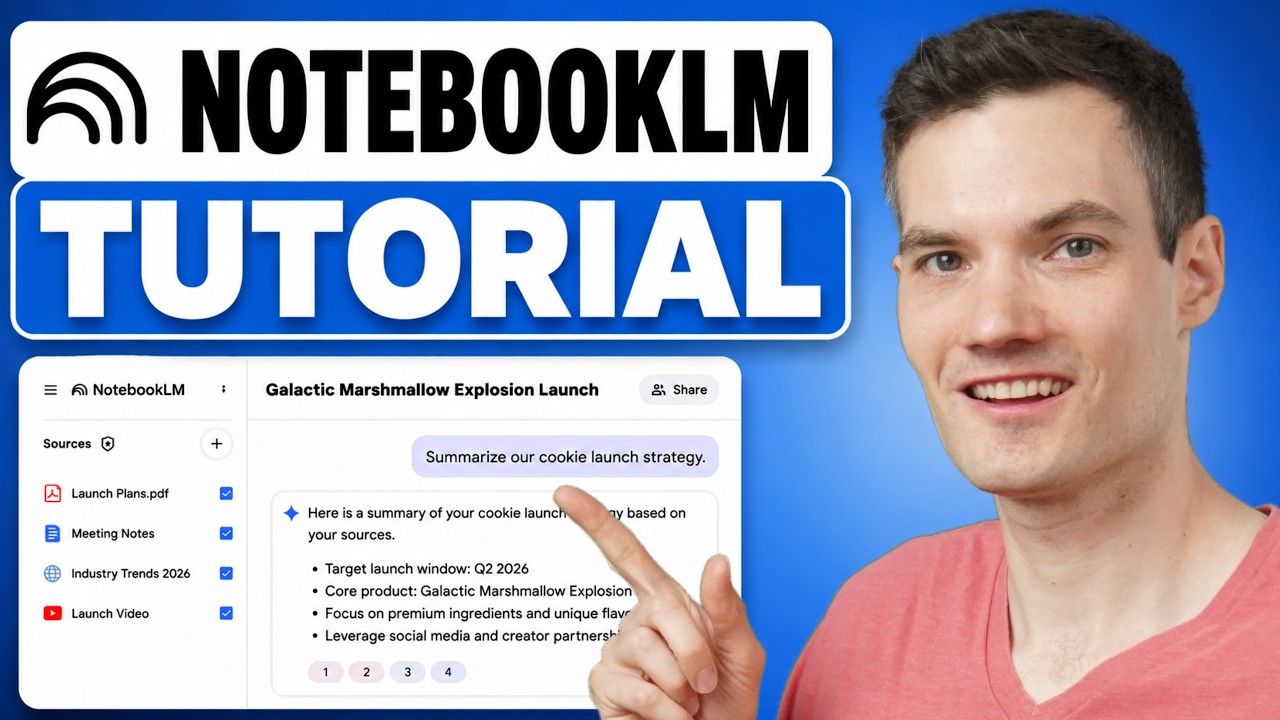
The tutorials at the top of this page show these steps on screen.
An example to try
Add three documents you know well, such as last quarter's meeting notes. You already know the answers, so you can judge the notebook's. Then paste these questions one at a time.
What did we decide about the delivery schedule, and in which meeting?
List every open action item with the person who owns it.
Where do these notes disagree with each other?- A good answer names the meeting or the file and carries a citation on each claim.
- Select a citation. If the passage does not say what the answer says, the answer is wrong, however sure it sounds.
- The third question shows whether your notes contradict each other, which a summary alone would smooth over.
Tips for better results
- Name a focus when you make an overview, for example "explain it for a new hire".
- Pick the Audio Overview format by the next step: Brief for a short walk, Critique for your own draft, Debate when your sources disagree.
- Ask the way you would ask a colleague who has read every file: which meeting, who owns it, what changed.
Limits and your files
A notebook on the free plan holds up to 50 sources. One source can run to 500,000 words, and one uploaded file can be 200 MB. A YouTube video comes in as its transcript only, so it must be public and have captions, and paywalled web pages are not supported.
Google says it does not use your uploads for AI training unless you send feedback. For Workspace and Workspace for Education accounts, uploads, questions and answers are neither reviewed by people nor used for training. Google labels overviews as AI-generated and says they may contain inaccuracies.
Learn more about NotebookLM
- 3NotebookLM tutorial: sources, cited answers and overviews in Gemini NotebookA NotebookLM tutorial for beginners: add sources, ask questions with clickable citations, and make Audio Overviews, Video Overviews and mind maps.
- 5Best AI for research in 2026: deep research tools, paper search and notebooks comparedCompare ChatGPT, Gemini, Claude, Perplexity, Gemini Notebook, Microsoft Researcher and Elicit for research: free plans, prices, limits and what each reads.
- 2How to use AI for research and check what it findsLearn how to use AI for research: choose web search or a research mode, ask for sources, open every link and check each claim before you rely on a report.
Frequently asked questions
What is NotebookLM used for?
It answers questions about documents you add and shows where each answer came from. People use it to study, to prepare for meetings and to turn long reading into summaries, audio and mind maps.
Is NotebookLM free?
Yes, with standard usage limits. Google AI Plus doubles them, Google AI Pro quadruples them, and AI Ultra gives 5 or 20 times Pro's. The quota refreshes every 5 hours until you reach a weekly limit.
Is NotebookLM the same as Gemini Notebook?
Yes. Google renamed NotebookLM to Gemini Notebook on 16 July 2026 and calls it the same standalone product. Help pages use the new name, while most people still search for the old one.
Can NotebookLM search the internet?
Only to find sources. It answers from the notebook's sources, but when you add sources you can type a question, choose Web or Drive, and import the results you pick.
Can NotebookLM be wrong?
Yes, so check the citation. The notebook may say it cannot answer when the facts are not in a source, and Google says overviews may contain inaccuracies.
Can I use NotebookLM on my phone?
Yes, in the mobile app, though some features are limited there. Mind maps are not supported in it yet.
Sources
- Google: NotebookLM is now Gemini Notebook https://blog.google/innovation-and-ai/products/gemini-notebook/notebooklm-gemini-notebook/
- Google: Learn about Gemini Notebook https://support.google.com/notebooklm/answer/16164461?hl=en
- Google: Create a notebook in Gemini Notebook https://support.google.com/gemininotebook/answer/16206563?hl=en
- Google: Add or discover new sources for your notebook https://support.google.com/gemininotebook/answer/16215270?hl=en
- Google: Use chat in Gemini Notebook https://support.google.com/gemininotebook/answer/16179559?hl=en
- Google: Generate an Audio Overview in Gemini Notebook https://support.google.com/gemininotebook/answer/16212820?hl=en
- Google: Generate Video Overviews in Gemini Notebook https://support.google.com/gemininotebook/answer/16454555?hl=en
- Google: Use Mind Maps in Gemini Notebook https://support.google.com/gemininotebook/answer/16212283?hl=en
- Google: Manage usage limits in Gemini Notebook https://support.google.com/gemininotebook/answer/17670842?hl=en
- Wikipedia: Gemini Notebook https://en.wikipedia.org/wiki/Gemini_Notebook
- YouTube: Kevin Stratvert, How to Use Google NotebookLM (Full Tutorial) https://www.youtube.com/watch?v=uSVBfyHBiDU
- YouTube: Paul J Lipsky, Give Me 12 Minutes, I’ll Make You a Gemini Notebook Pro https://www.youtube.com/watch?v=dkNYOlIK7ZI